Showing posts with label Laptops Solutions. Show all posts

Friday, 23 September 2011

Ten Ways to Upgrade Your Netbook

Netbooks are universally regarded for their portability, but no two netbook models are exactly alike, and each seems to come with different trade-offs. A netbook with a superior battery might have a horrible keyboard arrangement; a netbook with a solid-state drive might slip out of your price range; a netbook with a killer list of specs might be missing 802.11n connectivity. These are all common problems--and you won't find common solutions.Due to their diversity, netbooks don't share common upgrade paths as typical desktop PCs do. Each model is unique in what you can do to it, and the exact procedures for modifying your device are as varied as the netbooks themselves. If you want to upgrade your machine, we recommend that you hunt down the instruction manual or, in the case of trickier upgrades, a community of users who can walk you through the process of modifying and hacking new functionality into your extremely portable PC.
That said, you can make a wealth of netbook customizations, and they range in difficulty from 5-minute routines to soldering-gun-based surgeries. We'll take you through some customizations for a Dell Mini 9, as it's one of the more tweakable netbooks we've come across. While your mileage (and procedures) will vary with your own netbook model, this guide will give you a good idea of the kinds of upgrades that could be possible for your machine and skill level.

Easy Upgrades

Insert a Better Battery
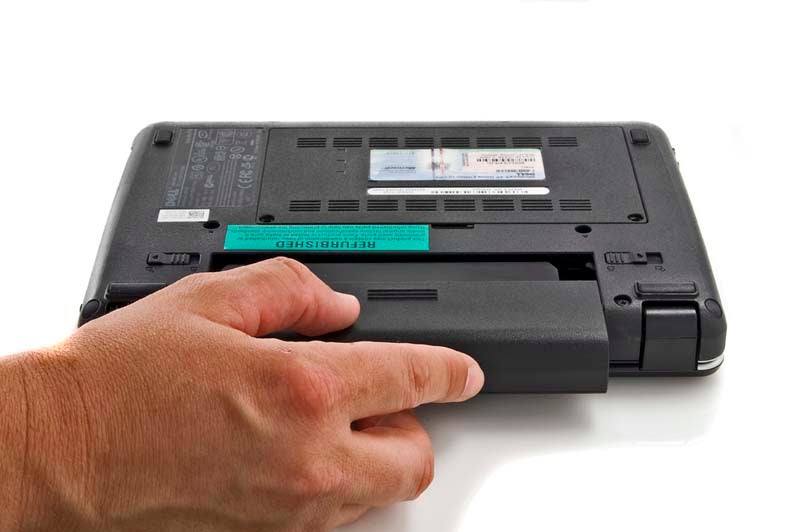
Upgrade netbook batteryFinding the right high-capacity battery for your netbook can be tricky, but installing it couldn't be easier.In our testing the Dell Mini 9's battery lasted around 3 hours, 34 minutes. That's not too shabby for a four-cell battery, but you can do better. Though you may find a few guides online that teach you how to create a laptop battery using a number of aftermarket batteries all wired together, that's a recipe for disaster. Instead, look to eBay: There you can pick up a 77-watt-hour, eight-cell battery that's entirely compatible with the existing connections (and size) of your Dell Mini 9. You'll double the longevity of your netbook--provided you aren't bothered by the unruly mass sticking out from underneath your system. To replace the battery, flip your netbook upside-down and move the two switches from the locked icon to the unlocked icon, and push up on the battery tray.
Upgrade the Operating System
Upgrade netbook OSSince netbooks don't come with built-in optical drives, you'll need a USB drive to perform an OS upgrade.If you want to install a new operating system onto your netbook, you certainly can: Just pop the CD in any external USB optical drive and install away.
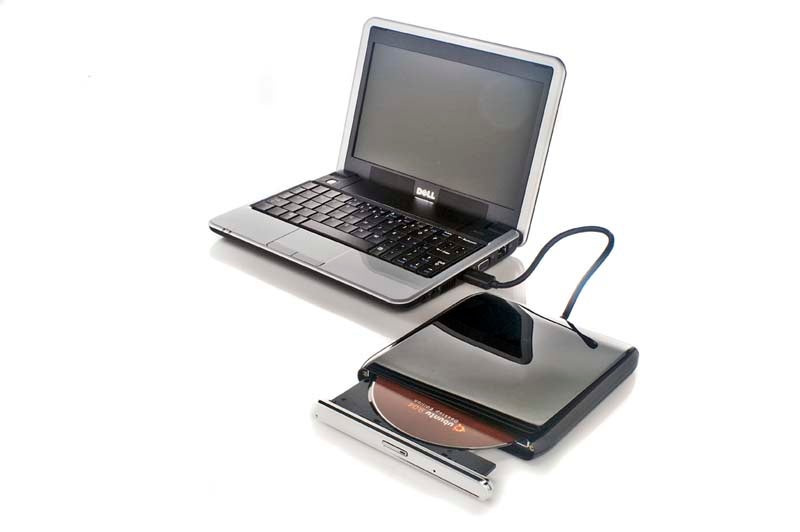
Want to dual-boot your netbook? Grab the GParted utility, by downloading the .iso file for its LiveCD and burning the file onto a disc. Insert that disc into the external optical drive, restart your netbook, and jump into the BIOS to change the boot settings for your machine. Boot off of the optical drive first, and GParted will load. Right-click on the primary partition and select Resize/Move.Microsoft recommends at least 16GB of space for Windows 7; if you were hoping to use that OS but your netbook doesn't have that much room, your experiment ends here. For any OS, if your netbook does have space for it, enter a new partition size of your choosing. Click Resize, and you'll see the newly unallocated space sitting to the right of your primary partition in GParted's graphic. Right-click on this area and select New. Enter zeros for the 'Free Space Proceeding' and 'Following' selections, select Primary Partition under 'Create as', and click the add button.
If you prefer not to use an external optical drive, you can follow these steps for using GParted and installing the new OS with a simple USB thumb drive.
Rearrange the Keyboard
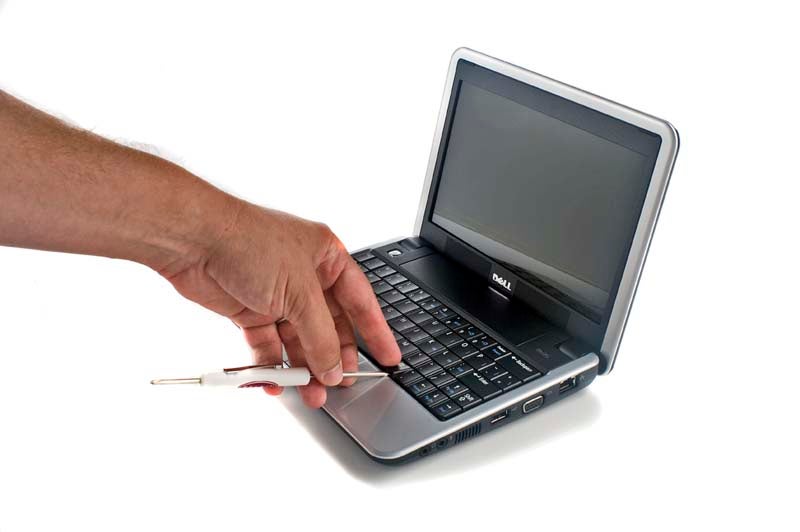
Rearrange netbook keyboardDo you accidentally bump the keys near your touchpad? Pop them out and remap the keyboard to suit your typing style.Is the default layout of your netbook's keyboard conflicting with the muscle memory you've built for desktop keyboard layouts? Pop an offending key off of your netbook by wedging a tiny screwdriver under the key and gently applying upward pressure. As long as the keys you're swapping around are of the same size, you'll be able to interchange them as you please. Once you've made the physical transformations, use the Sharp Keys utility to reassign how your operating system interprets the keystrokes. If you don't mind a bit of visual confusion, you could leave the physical keys exactly where they are and simply redefine their purpose with this helpful application.
Upgrade the Hard Drive
What's worse: the underwhelming capacity of the typical solid-state drive that comes with a brand-new netbook, or the price difference you'd have to pay just to get a larger drive in your preconfigured netbook build? Here's a way around both of those nightmares. First, pick the lowest-capacity drive you can purchase when you're building your netbook on the manufacturer's Web site (or, if you have no configuration options, just buy the netbook as it is). Next, consult the appropriate user forums to get a sense of which aftermarket solid-state or magnetic hard drives are compatible with your machine. Finally, grab your screwdriver.
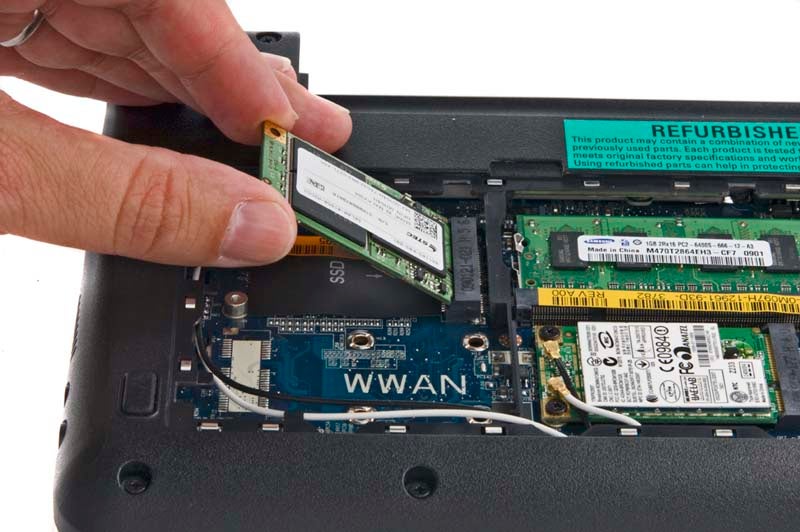
Upgrade netbook driveOn a Dell Mini 9, the solid-state drive is a small card held in place by two screws.On the Dell Mini 9, flip the netbook over and remove the two screws that secure the larger back panel into place (since it's in the center of the netbook, it's hard to miss). Pry off the panel with your finger or with the tip of a screwdriver. With the Dell Mini 9's battery facing north, you'll see a set of four large electronic pieces inside the machine; those are the hard drive, the memory, the network card, and a blank space for a nonexistent 3G card. You'll see two screws securing the tiny flash-memory circuit board into place in the upper-left quadrant. Unscrew them, and the SSD should lift up a little. Pull it out, insert its replacement, tighten the screws, and your upgrade is done!
Upgrade the RAM
Did you know that memory is one of the main areas of a netbook where system manufacturers can jack up the price? It's true. Don't let a netbook maker empty your wallet by selling you RAM that you can find on the aftermarket for a lot less. In the case of the Dell Mini 9, we purchased the bare minimum of RAM necessary to complete the configuration: 512MB. To upgrade your machine's RAM, first open the back of the netbook and look for the memory. On the Mini 9, it's in the upper-right quadrant (with the battery facing north). On the RAM you should see its specifications. Either you can purchase the same type of RAM in a larger size (in our case, that came out to a 2GB stick of DDR-2 SODIMM running at 533MHz), or you can check the manufacturer specifications for your netbook to discover the maximum supported speed. You'd barely notice the speed difference between DDR2-4200 memory and DDR2-5300 memory, but there's no sense in maxing out with DDR2-6400 if your machine can't support its full speed.
Upgrade netbook RAMAs with ordinary laptops, netbook RAM is easy to replace once you remove the main cover plate on the bottom of the machine.To replace the memory, simply push outward on the two clips holding the memory in place near the notched groove on each side. The RAM will pop upward toward you for easy removal. Insert your newly purchased memory, push it into place, and you're set. When you start up the machine, quickly press the appropriate key to pull up the system BIOS (for the Dell Mini 9, it's the 2 key). Head to the main tab and confirm that the system recognizes the new memory. If it does, your upgrade is a success.
Upgrade the Wi-Fi
Upgrading the internal Wi-Fi capabilities of a netbook from 802.11g to 802.11n sounds like an easy task at first. In theory, it should be. In theory, you should be able to purchase any old miniature wireless card, pop off the back of the netbook, do a quick shuffle of components, and enjoy the increased functionality and speed of the new card.
Alas, in reality it isn't that easy.
For starters, just because a Wi-Fi card looks like it will fit in your netbook, that doesn't mean the card is compatible with the operating system/motherboard combination. But before we even get to that, there's the issue of sizing. When purchasing a replacement Wi-Fi card, you need to know whether your netbook can support a full-height or half-height card. To verify this, remove the back of the netbook and look for the existing Wi-Fi card. A full-height card is long and rectangular, almost like the shape of an SD Card for a camera. In contrast, a half-height card is stubbier--it resembles the shape of a CompactFlash card (or, for that matter, a full-height Wi-Fi card cut in half vertically).
Once you've figured out the available space for a new card, you'll know what kind of card to get. As for the specific brand of Wi-Fi card, there is no hard-and-fast rule to determine what will be compatible with your particular netbook model. What looks perfect on paper might not work at all with your system's configuration. Instead of using trial and error, take the time to run an Internet search for other people's successful Wi-Fi upgrades of the same netbook model. It's the only way you'll be able to know, with 100 percent certainty, that the card you pick up will actually work.
Upgrade netbook Wi-FiTo upgrade your netbook's Wi-Fi card, begin by disconnecting the two antenna cables from the card.Once you've cleared that hurdle, installing the card is an easy task. On the Dell Mini 9, for example, first remove the netbook's rear covering. The Wi-Fi card is located in the center-right of the system; it's the card with white and black wires (the antenna) running into it. Gently disconnect those wires, undo the screws holding the card in place, and remove the card from the slot. Insert the new card, reinsert the screws to tighten it into position, and reconnect the two antenna wires--note, however, that the specific card you buy will dictate whether you should reverse the wires as compared with their positions on the original card. Depending on the size of the card and the configuration of your netbook's motherboard, you might have to remove a motherboard standoff to make for a solid fit.
If the operating system can't find the new card on the next system boot, be sure to install the drivers for the particular Wi-Fi adapter you purchased. You should be able to find the drivers on the company's Web site; if not, you might have to install drivers from a third-party netbook manufacturer whose product happens to use the same network card.
Overclock the Processor
Overclocking represents the pinnacle of system upgrades that an average user can perform without physically deconstructing the netbook. It's also one of the more dangerous upgrades for netbooks, given that these miniature systems don't come with the best cooling. In the case of the Dell Mini 9, the passive cooler protecting the CPU from thermal overload is no match for frequency tweaking, and it's probably for the best that we were unable to find a way to overclock this tiny PC.
Other netbooks are a bit more flexible in this regard. Owners of Dell Mini 10 netbooks can rev up their CPU through the SetFSB utility. Users of earlier Asus Eee PC models can pick up the Eeectl utility, which permits them to alter the frontside bus within Windows and, consequently, up the speed of the processor. If you have an MSI Wind netbook and you want to update the BIOS, you'll find that that company officially supports your overclocking habit. Still, these are waters best navigated carefully--or not at all, lest you turn your netbook into a doorstop.
Some of the crazier upgrades you can perform on netbooks, including the Dell Mini 9, are detailed enough to warrant their own multipage articles. While we can't list every step along the way, we can at least show you the possibilities that await should you choose to pick up a soldering iron and venture into the world of electronic mischief.
Add a Touchscreen
First up is the process of replacing your netbook's ordinary screen with a touchscreen. Prior to the invention of handy, all-in-one, no-soldering-required kits, this process used to require extreme care, patience, and the cash to repurchase a machine should your connections not be as precise as they needed to be. Thankfully, online you can now find a variety of kits for a wide range of netbooks that give you the parts--and, more important, the step-by-step walkthroughs--for this complicated procedure. While it still isn't an upgrade for novices, adding a touchscreen to a netbook has come a long way from the solder-filled days of yore.
Add a GPS Receiver
Inserting a brand-new GPS receiver into a Mini 9 sounds like an easy task, given the size of the device in question. Since it's no larger than a tiny flash drive, you would think that sticking this device into a netbook and finding a place to connect it would be as simple as plugging in a USB thumb drive. And you'd be right--but only about the first half of that process. The Dell Mini 9 certainly has plenty of room inside for an integrated GPS receiver, but unlike an average motherboard, the Mini 9's doesn't have any open USB connectors to simplify the powering of the receiver. Super Moderator Acabtp of the MyDellMini forum ran wires all around his Dell Mini 9 in search of power for the device, eventually finding success in connecting the GPS unit to the unused mini-PCI Express connector of the Mini 9's WWAN port. This is a tricky upgrade that requires some additional hardware hacking in order for you to turn the device on and off at a whim, but it's a small price to pay to have a hybrid netbook/GPS device.
Add a Drive-Activity Light
Everyone loves hacks that add a little more aesthetics to an otherwise drab machine. In the case of the Dell Mini 9, the netbook lacks a hard-drive-activity light on its front to let you know when your magnetic (or solid-state) drive is in use. Super Moderator UnaClocker of the MyDellMini forum went through the painstaking process of detailing exactly how to add an activity light to a Dell Mini 9 that has been upgraded previously with a RunCore solid-state drive. The procedure requires you to identify the exact pin on the SSD's controller that's responsible for the activity reading, solder a wire to the resistor, and then solder the other end of the wire to a resistor that's attached to an LED. You then have to find a way to install the LED into the Dell--UnaClocker put it in the battery-notification area--in order to achieve the blinking effect.

High-Speed Internet on a Plane: Where to Find It


fter years of fits and starts, Wi-Fi on airplanes is finally taking off. I've had the pleasure of staying connected to the Internet from San Francisco to New York, and I highly recommend the experience.
At the moment, however, in-flight wireless Internet access is far from ubiquitous. And it can be difficult to determine in advance if a flight you're considering has the service. For example, American Airlines currently offers Wi-Fi on some of its MD-80 aircraft, but not all. When you're booking your flight at American's Web site, there's no way to tell if a particular flight offers wireless access.
This is true for many airline Web sites, except for those like Virgin America, which offers in-flight Wi-Fi onboard all flights. The reason is that when Wi-Fi is only on some planes within a certain aircraft type (like American Airlines' MD-80s), the airline may need to switch planes on a route at the last minute for mechanical or other reasons. When an airline promises Wi-Fi on that flight and then can't deliver, they've likely disappointed at least a subset of that flight's passengers before the plane even takes off.

U.S. Airlines Offering In-Flight Wi-Fi

Here's a snapshot of in-flight wireless Internet access aboard the major U.S. carriers.
Airtran now offers Aircell's Gogo in-flight Internet access service on its entire fleet of Boeing 717s and Boeing 737s.
Alaska Airlines has been testing Row 44's service on one Boeing 737-700 aircraft. As of this writing, the airline had not announced plans for extending the service to additional planes.
American Airlines has installed Gogo on all 15 of its Boeing 767-200 aircraft, on certain flights between New York's JFK and San Francisco, Los Angeles, and Miami, and between Los Angeles and Miami. American is currently expanding Gogo to its domestic fleet of 150 MD-80s. Next year, the airline will add Gogo to its Boeing 737 fleet.
Continental Airlines has not yet installed wireless Internet access on any of its planes, according to a spokesperson. The airline is currently evaluating its options as well as gauging what customers want and are willing to pay for.
Delta Airlines does an excellent job keeping the public updated about the status of its Wi-Fi rolloutthrough weekly blog updates. Recently, Delta's blog reported that 205 of its planes had Gogo on board, with 700 or more "wireless" flights every day. About 63.5 percent of "the premerger Delta domestic mainline fleet" now how Wi-Fi. The type of aircraft equipped with Wi-Fi are also listed, which includes Boeing 767-300, Boeing 757-200, MD88, and MD90. According to the Delta blog, the remainder of Delta's domestic fleet will have Wi-Fi installed "by the fall." The pre-merger Northwest planes will have wireless onboard by next summer.
JetBlue currently only has one aircraft, an Airbus A320 dubbed "BetaBlue," equipped with Wi-Fi via LiveTV. JetBlue plans to extend the service to 20 additional A320 planes beginning this year. The Wi-Fi service is limited to e-mail, instant messaging, and shopping on Amazon.com but is free, says a spokesperson.
Southwest has four Boeing 737s equipped with Row44 Wi-Fi on a trial basis. The airline hasn't announced plans to extend the service as of this writing.
United Airlines is scheduled to offer Gogo beginning this fall on 13 of its Boeing 757 aircraft flying between JFK and Los Angeles and JFK-San Francisco. The airline hasn't announced any further rollout.
US Airways says Gogo will be installed on 50 of its Airbus A321 planes by early 2010.
Virgin America has rolled out the Gogo service to its entire fleet.

The Wrap-Up

It's worth knowing which airlines offer Wi-Fi, and on what type of aircraft you might find it. If you want to stay current on the latest developments, keep an eye on the news pages of the leading in-flight Wi-Fi provider Aircell (which links flyers to the Internet via EV-DO towers on the ground) and competitor Row 44 (which is satellite-based).
Keep in mind that most airlines charge for in-flight Wi-Fi. Example: Aircell's Gogo (offered on Air Tran, American, Delta, United, US Airways, and Virgin America) is $6 for a single flight up to about 1.5 hours, $10 for a single flight between 1.5 and 3 hours, and $13 for a flight over 3 hours. You can also get a 24-hour pass ($13) or a 30-day pass ($50), or use the service on a mobile device such as a Wi-Fi enabled smart phone ($8 for a single flight over 1.5 hours).

Replace a Laptop's Crashed Hard Drive


Besides curse the fates and the laptop manufacturer?
If you don't have an up-to-date backup, your first priority will be getting your data back. Depending on how you use your PC, that could include business documents, photos, music, email, and so on. Several companies specialize in recovering data from broken drives. I hesitate to recommend one because I've never needed one myself and there's no practical way to test them. But I can say that Ontrack andDriveSavers have long and mostly positive reputations. Recovery could cost you thousands of dollars, but that's the price of not backing up.
If you decide to get into the backup habit, see What's the Best Way to Backup What I Need to Backup?
So, on to replacing the drive, itself:
Assuming it's a standard laptop SATA drive, physically replacing it should be easy. I can't give you exact directions because they vary from one company and model to another, but replacing a laptop hard drive is usually pretty simple. Check the model's documentation or the manufacturer's web site.
Restoring Windows is another problem. Every Windows computer comes with some sort of recovery tool for restoring the operating system. Unfortunately, most of them these days come in the form of a special partition on hard drive. If you didn't get a recovery disc (and possibly even if you did), the recovery tool is gone with the drive.
If that's the situation, call the vendor and see what they have to offer. Best case scenario: They'll sell you a recovery DVD for $10 or $20. Worst case: They'll insist that you return the laptop, so they can install a new, reimaged hard drive at a considerably higher price.
As a future precaution, I suggest you create an image backup of the hard drive, which you can use to restore the operating system without depending on the manufacturer's recovery tool.

What's the Best Way to Backup What I Need to Backup?


'm going to concentrate here on backing up your data (in which I include photos, videos, music, and so on), because that's your top priority. Should your hard drive die, you can reinstall Windows and your applications. You can't reinstall your tax records or your children's baby pictures.
Any decent backup program should know what files and folders need to be backed up. But just in case, here are the likely candidates in Windows XP. All of these folders reside inside C:\Documents and Settings\login, where login is the name you use when you log into Windows:
  • My Documents
  • Desktop
  • Application Data
  • Favorites
  • Local Settings\Application Data
And in Vista, where you can find these folders inside C:\Users\login:
  • Documents
  • Pictures
  • Desktop
  • Music
  • Contacts
  • Videos
  • AppData
  • Favorites
You should back up every day that you use your computer. An intelligent backup program will, on most days, only back up files that have been created or changed since the last backup.
One more general rule: Your backup should be physically separated from your computer. A backup that will be robbed or destroyed along with the rest of the computer is not a secure backup.
I recommend backing up to an external hard drive if you think you can develop the backup habit, and to the Internet if you want to set up an automated system and forget about it. Although you can set up automated backups with external drives (most backup programs assume that this is your first choice), it's not really a good fit. Either you have to remember to plug in the drive at the right time (so much for unattended backups), or keep the drive plugged in at all times, which means your backup isn't physically separated from your computer.
On the other hand, automated online backups make a perfect fit. And physical separation between your hard drive and the backup is as great as it can get. The problem: It's slow--horribly, horribly slow. Your first full backup can take days. Fortunately, it won't keep you from working during the backup.
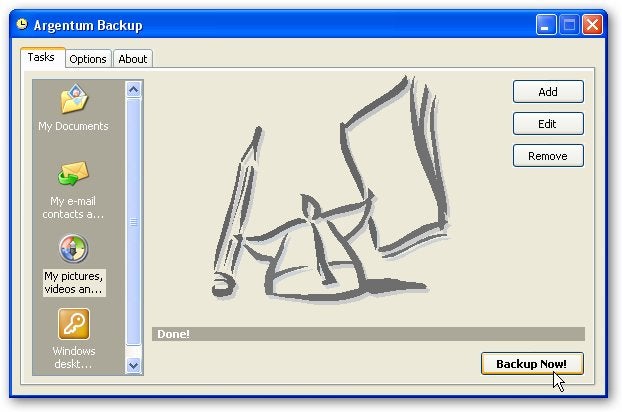
If you go with an external hard drive, check out the backup software that comes with it. If you don't likeit, I recommend Genie-Soft Backup Manager ($50 Home version, $70 Pro), which is remarkably easy and versatile. It can also do system backups. If you'd rather not spend that much, the $25 Argentum Backupis easy and versatile enough, although not in Genie's league.
For online backup, I recommend Mozy Home. For $5 a month, it will automately backup all the data you can fit on a single PC's hard drive.

Recharging Laptops, Netbooks, Gadgets Abroad


Traveling within the U.S. can be stressful and expensive. When it's time to dig out your passport, there's no telling what will happen (other than you'll wish you hadn't had your passport photo taken at Walgreens). Packing a laptop and other gear doesn't make international travel any simpler, either.
So, to make your upcoming globetrot a bit easier, this week I'll focus on what you need to know about recharging electronics abroad. Next week: using your mobile phone overseas.

Get Ready to Adapt

You'll need a power plug adapter specific to the country or region you'll be visiting. The adapter has just one job: to fit a two- or three-prong power cord plug from North America into a wall socket outside the continent that would otherwise reject it.
If you'll be traveling to multiple countries, try Kensington's $20 Travel Plug adapter. The adapter enables you to plug in one device in over 150 countries.
Otherwise, just buy one or two adapters (depending on how many gadgets you're packing) specific to the country you're visiting. Single-plug adapters are cheaper (about $5 to $6 each) and more compact than universal adapters like Kensington's Travel Plug adapter. The World Electric Guide will help you figure out which adapter you need. Magellan's is a good source for adapters and other travel accessory needs.
Tip: To minimize the number of adapters you'll need, and to simultaneously power your netbook and a USB device, consider Kensington's Power Adapter for Netbooks. It can recharge a variety of netbooks (using interchangeable tips) and also has a USB port.
Kensington's Power Adapter for Netbooks is a bit pricey (about $50 online), but it's less costly than theiGo series of power adapters, which also let you simultaneously charge a laptop and another device. The iGo products for laptops and other gadgets start around $60, but they also include adapters for airline seats and vehicle power outlets (which the Kensington device lacks). As a bonus, you could keep either the Kensington or iGo products stored in your laptop bag, so you won't have to remember to pack your laptop or netbook power cord before each trip.
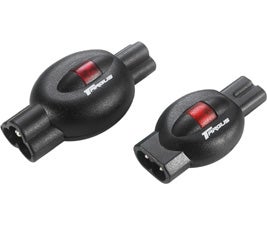
Given that current in some countries is, shall we say, dicey, you might consider traveling with a portable, universal surge protector. Targus Mini Mobile Surge Protectors are truly tiny, come in two- and three-prong versions, cost about $19 each, and work on 110-230 voltage systems. Keep in mind you'd still need a plug adapter to use one of these surge protectors overseas.

You Probably Won't Need to Convert

Aside from plug adapters, it's extremely unlikely you'll need a power converter, also known as a Switched Mode Power Supply, for your gadgets.
Converters regulate and stabilize electrical current. They're necessary when a device that operates within one voltage range is plugged into an electrical system that operates within a different range, and the device didn't come with a universal power adapter. In North America, most appliances operate within the 100-125 volt range. On other continents, 220-240 volts is common.
However, the vast majority of U.S. consumer electronics today (including laptops, netbooks, camcorders, cameras, MP3 players, mobile phones, ebook readers, and GPS devices) come with universal power adapters that can operate within the 100-240 volt range. So if your gadget's power adapter says something like "Input: 100-240VAC," all you'll need is the appropriate power plug adapter to recharge your electronics outside North America. You won't need a converter.

Most gadget power adapters work within the 50Hz or 60Hz frequencies. You're good to go here, too. North America uses the 60Hz frequency standard, while many other countries are on the 50Hz standard.

Mobile Computing News, Reviews, & Tips

1TB Laptop Drive: Western Digital has announced a 1-terabyte laptop hard drive that's priced at $250. But if solid state drives (SSDs) are the future of storage, should you get a laptop with a hard drive or an SSD?
Top 10 Must-Have iPhone Business Apps: Need to edit an Excel file or update your Web site on the bus? If you don't want to lug around your laptop, you can use your Apple smartphone. PC World's Daniel Ionescu profiles ten of the best business-worthy iPhone apps in his recent slide show.
Get Google Voice on Your iPhone: Even though Apple recently banished all Google Voice-related apps from its App Store, it looks like Google Voice might be sneaking back onto the iPhone. New York Times writer David Pogue says that Google is developing a special Google Voice Web page that will offer the same features.

Thursday, 22 September 2011

Laptop Q&A: Power Off Quickly, Fix Sticky Keys


It's been a while since the last time I came up with some good laptop tips, so when a Hassle-Free PC reader named Shawn wrote in with his problem I thought I'd better get back to notebooks.
Here's Shawn's problem: "I have a Dell Studio Laptop. When I turn off my computer, the Power button light stays on and blinks. The only way I can stop it from blinking is to disconnect the battery and then connect it again. Please help."
I have a pretty good idea what's happening here. Shawn's using the Studio's Power button to shut down, but it's actually putting the system into Standby mode. That would explain the blinking LED. There are two easy fixes for this.
First, you can click the Start button, mouse over the arrow at the bottom-right corner of the Start menu, and then click Shut Down.
What's that? You say you've been clicking that little Power icon to the right of the search box? Nice try, but the default Windows setting for that icon is the same as for your physical Power button: standby. No worries, I've blogged about how to turn the Vista Sleep button into a Power button.
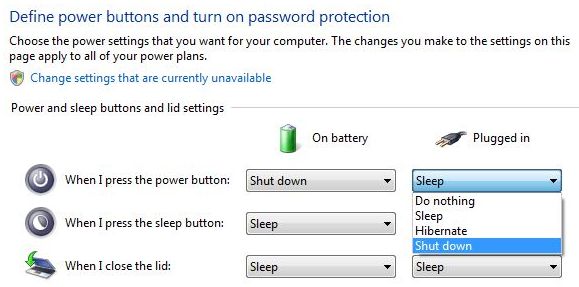
Second, you can change the function of your laptop's power button so that pushing it does indeed shut down Windows rather than putting it into standby (keep reading for how to do that).
What you should never do is yank the battery when the power LED is blinking. That's the equivalent of turning off your PC without letting Windows shut down properly, which can cause problems.
Oh, and in case you're smacking your forehead over this, don't worry: It's a mistake anyone could make. I mean, it seems only logical that a Power button would turn off the power, right?

Change the Function of Your Laptop's Power Button

I don't have any statistics on this, but most of the laptops that cross my desk have one thing in common: pressing the power button puts them to sleep (i.e. standby mode) instead of actually shutting them down. That's pretty weird considering that many laptops also have dedicated Sleep buttons.
Fortunately, it's easy to change the Power button's function, which can be programmed to make the laptop sleep, shut down, or hibernate. Here's how Vista users can make the change:
  1. Click Start, type power, and then click Power Options.
  2. In the lefthand sidebar, click "Choose what the power buttons do."
  3. You should see two pull-down menus alongside "When I press the power button." One is for when the laptop's running on battery power, the other for when it's plugged in. Choose the setting you want for each scenario.
  4. Click "Save changes" and you're done.
As you may have noticed, this screen also lets you change the functions for the Sleep button (if your laptop has one) and for what happens when you close the laptop's lid. So you can kill a couple of button-birds with this particular settings stone. Special thanks to reader Jeff for suggesting this handy tip!

Replace a Laptop Keyboard

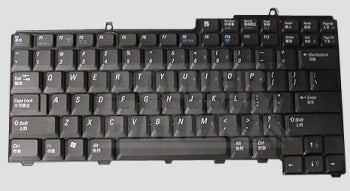
My cousin just presented me with her Dell Inspiron 9400 laptop, which was missing its F5 key. The keys that remained weren't in very good shape, either. Many were sticky, while others failed to register presses. A lot of the letters had worn off the keys, too.
Fortunately, a laptop with a rotten keyboard is not necessarily destined for the scrap heap (nor even Craigslist). In fact, if you're handy enough with a screwdriver to know which end drives screws, you can probably replace the entire keyboard in about 5 minutes.
In the case of the Inspiron, my search began and ended on eBay. A quick search for an Inspiron 9400 keyboard revealed plenty of options, including a brand-new replacement for all of $12--shipped.
Then I Googled "Inspiron 9400 replace keyboard" and found how-to instructions in a matter of seconds. (See, you may think I'm a genius, which I am--but many times it's just a matter of knowing how to find the information you need.)
Turns out it's crazy-easy to swap in a new keyboard on an Inspiron: Just pry up the bezel, remove a pair of screws, and unplug the old keyboard. Put the new one in its place, close up the machine, and presto, you're done.
Your mileage may vary, of course, depending on your laptop. But if you're suffering with an old, cruddy, gunked-up keyboard, it may cost you as little as $12 and 5 minutes to replace it. Pretty worthwhile investment, no?

Tips for Laptop Users From Hassle-Free PC


Turn Your Vista Notebook Into a Wi-Fi Hotspot
One thing you should know about me: I'm no fan of Windows Vista. Some things about it just annoy me to death, like the unnecessary overhaul of certain interface elements. That said, Vista has a few features I positively love, starting with connection sharing. In other words, you can turn your Internet-connected notebook into a Wi-Fi hotspot for others to share.
This can come in mighty handy if you're the only one in your group with, say, a wireless modem or wired Ethernet connection. Here's how to set it up:
  1. Click Start, Control Panel, Network and Sharing Center.
  2. Click "Set up a connection or network."
  3. Click "Set up a wireless ad hoc (computer-to-computer) network," and then click Next.
  4. Enter a name for your network, choose a security type (WEP is probably fine, given that you're sharing your network with people you know), and then enter a security key.
  5. Select the "Save this network box," then click Next.
  6. If you see a box marked "Turn on Internet Connection Sharing," go ahead and click it.
That's it! Now you should be able to share your connectivity with other users within about a 30-foot range.

One Way to Revive a Dead Notebook

I have an Acer notebook that sits alongside my desktop. Today, like every day, I hit the power button--and nothing happened. Well, not quite nothing: the power light came on and I heard the usual fan noise, but the screen stayed dark. And there was no hard-drive activity. In short, the notebook was dead.
I held down the power button to force a shutdown. Then I waited about 10 seconds and hit the button again. Same result: The notebook burbled but didn't boot.
I'm not one to take "won't boot" for answer, so I disconnected the power, removed the battery, flipped the notebook over, and unscrewed the plastic panels covering the hard drive and memory sockets. Notebooks get bumped around a lot, and if some plug-in component gets knocked even a little bit loose, the result can be, well, a dead notebook.
Everything looked okay, but I removed and reseated the memory modules anyway. Then I reconnected the power and presto: The Acer booted normally.
Obviously this won't work in all cases, but it's something to remember if your notebook ever wakes up dead.

Three Keyboard Shortcuts You Need to Know

You know that Windows key on your keyboard? Most people overlook it, but that's a mistake. One press is the same as clicking the Start button with your mouse. And pressing it in concert with other keys can save you from having to reach for the mouse at all. Here are three Windows-key shortcuts you should memorize immediately:
  • Windows-D: Minimizes all open windows so you can see the desktop. A second tap restores them.
  • Windows-E: Opens Windows Explorer (the file-management tool, not the browser). This is much quicker than right-clicking the Start button and then Explore, or trying to find Explorer in the Start menu.
  • Windows-F: Launches Windows' search tool (remember "F" for "find").

Password-Protect a Word or Excel Document

Most folks have a few documents--legal forms, business records, account spreadsheets, etc.--they'd like to protect from prying eyes. Here's a little-known fact: Word and Excel let you assign passwords to individual documents, and it's easier than you might think. Here's the procedure.
  1. With the desired document open, click File, Save As.
  2. Click the Tools button, then Security Options (or General Options if you're using Word 2007 or Excel).
  3. Enter a password, keeping in mind that it will be required every time you want to open the document. Thus, make sure it's something you can remember! If you're concerned about forgetting, write the password down somewhere.
  4. Click OK and you're done.
That's all there is to it. If you want to get fancy, you can click the Advanced button in Step 3 and choose from various kinds of password encryption--but that's probably overkill for most users.
 
Design by Free WordPress Themes | Bloggerized by Lasantha - Premium Blogger Themes | Laundry Detergent Coupons